How to Colorize Black and White Historical Archives at Scale
A professional workflow for colorizing black and white historical archives — digitization standards, batch AI colorization, metadata, and quality control for museums and genealogy societies.
 (opens in new tab)
 (opens in new tab)
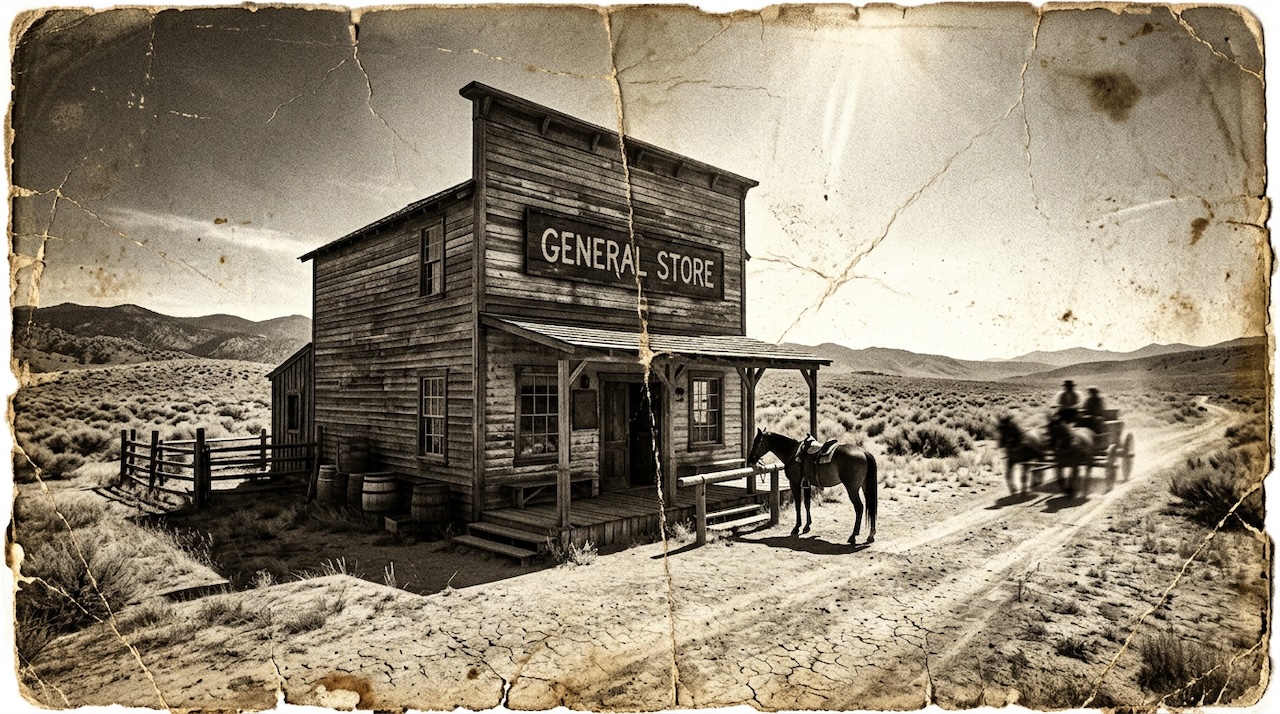
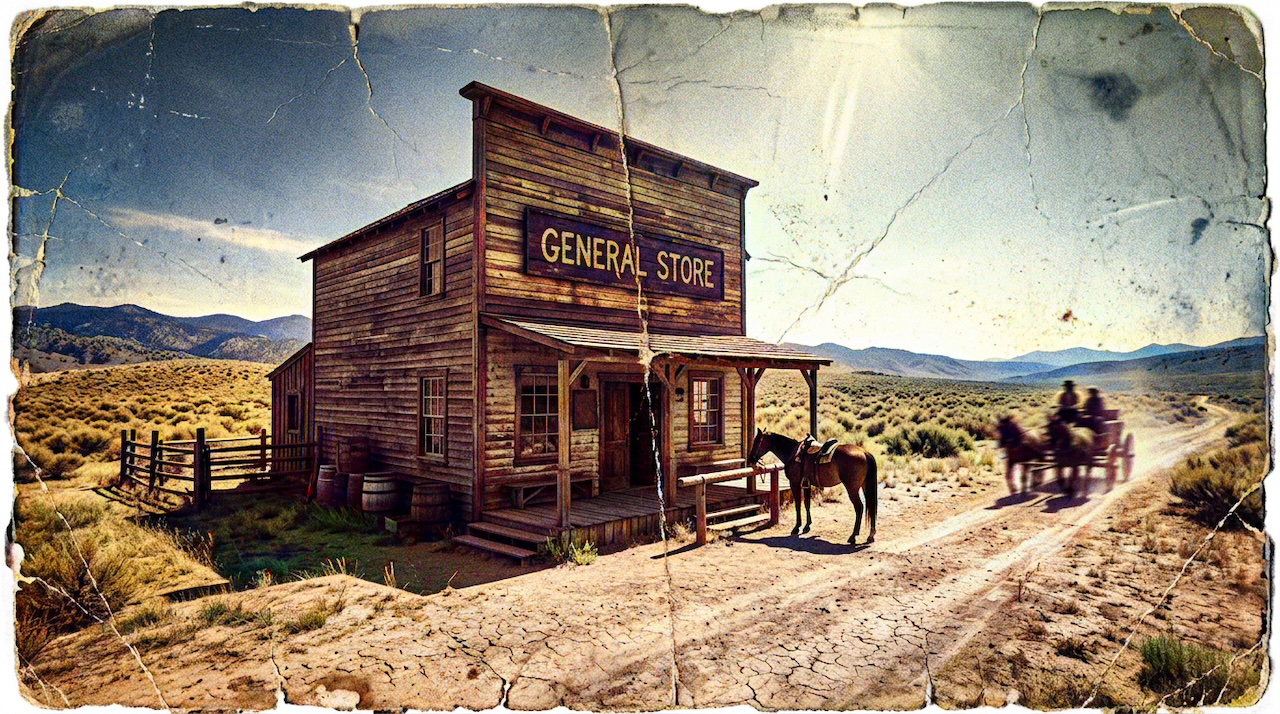
Pixomax Studio result — Old West general store. How to Colorize Black and White Historical Archives at Scale.
Click any image to open full size in a new tab.
Colorizing black and white historical archives at scale is fundamentally different from colorizing a single family portrait. Archives demand consistent digitization standards, batch processing, quality control protocols, and clear metadata that distinguishes AI-reconstructed color from verified historical records.
This guide outlines a professional workflow used by genealogy societies, local history museums, and independent archivists.
Digitization standards for historical archives
Before any AI colorization, establish baseline standards:
| Standard | Recommendation |
|---|---|
| Resolution | 600 DPI minimum; 800+ for oversized prints |
| Master format | TIFF (lossless) |
| Working derivative | PNG for colorization input |
| Color mode | Scan in color even for B&W — captures fading and sepia |
| Naming | {collection}-{year}-{identifier}-{sequence} |
Consistency across thousands of frames matters more than perfection on any single scan. Automated batch pipelines assume uniform input dimensions and exposure.
Preparing scans for AI colorization
Run these steps across the entire collection before uploading:
- Crop — remove scanner bed borders uniformly
- Contrast normalize — match histograms across the collection where possible
- Dust removal — light pass only; preserve film grain on pre-1940 emulsions
- Metadata embed — EXIF tags with catalog ID, scan date, and operator
Avoid heavy sharpening or denoising — modern AI models handle grain better when they see the original texture. Read about the underlying technology in our neural colorization glossary.
Batch colorization workflow
For archive-scale projects, manual one-by-one uploads are not viable. Pixomax Studio's batch processing accepts folder uploads, runs the same Large-model pipeline as single mode, and delivers a ZIP when the queue completes.
Recommended settings for historical archives:
- Model: Large (best for portraits, uniforms, and civic group photos)
- QC sample rate: Review 5–10% at full zoom before approving the full export
- Provenance note: Tag every colorized file with
colorization-method: AI-reconstructed
Check batch pricing for archive projects →
Quality control checklist
Inspect these elements on your QC sample before releasing the full batch:
- Skin tones — natural warmth on portraits, no orange cast
- Uniforms and insignia — period-appropriate hues (military, civic, religious)
- Signage and lettering — readable, not hallucinated
- Architecture — consistent stone, brick, and foliage colors within a scene
- Sky and water — gradient coherence, no flat color blocks
Document any systematic issues and re-process affected batches rather than hand-editing individual frames.
Metadata and catalog integration
Every colorized derivative should link back to the catalog record:
Original:     smith-collection-1942-0047-bw.tiff
Colorized:    smith-collection-1942-0047-color.png
Provenance:   AI colorization via Pixomax Studio, 2026-05-22
Disclaimer:   Color is algorithmically reconstructed, not historically verified
This transparency protects institutional credibility and satisfies donor agreements.
When not to colorize
Some archive materials should remain grayscale:
- Legal documents where color adds no interpretive value
- Records where fading is itself historically significant
- Images with unknown provenance and potential misrepresentation risk
Colorization is a presentation layer — the grayscale master remains the authoritative record.
Scaling beyond manual workflows
For institutions integrating colorization into catalog systems, Pixomax Studio's developer API automates upload, processing, and retrieval — the same inference as the web app with predictable credit usage.
View API-ready pricing plans →
Frequently asked questions
Is it ethical to colorize historical archives?
Colorization is ethical when treated as a visualization aid, not a replacement for the original record. Always preserve the unmodified scan, document that color was AI-generated, and avoid presenting colorized versions as historically verified fact.
What is the best tool for batch colorizing historical photos?
Pixomax Studio supports folder batch uploads and ZIP downloads with the same quality pipeline as single-image mode — making it the most practical choice for archives processing hundreds or thousands of frames.
What file format should historical archives use?
Archive masters should remain in lossless TIFF or PNG. Colorized derivatives can be exported as PNG for quality or JPG for web delivery. Never overwrite the original grayscale master.
How long does it take to colorize a large archive?
Processing time depends on image count and resolution. Batch pipelines process queues automatically — a 500-photo civic archive typically completes in hours, not weeks of manual hand-coloring.
Related guides
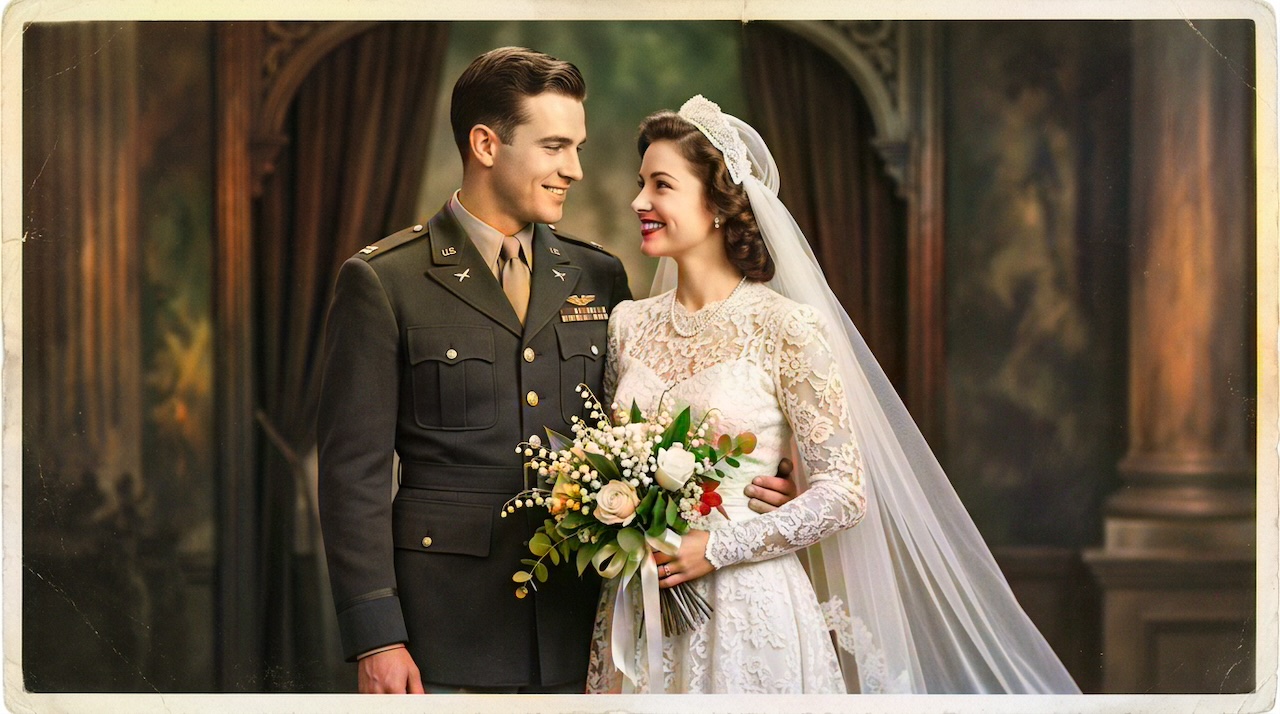 Military Portrait Colorization Guide: Uniforms, Insignia & Skin Tones
Colorize military portraits and uniform photos with AI — WWII, Korea, and Vietnam-era dress uniforms with natural wool tones and accurate facial color.
- WWII-Era Wedding Photo Colorization: Military Portraits & Bridal Gowns
Colorize WWII-era wedding photos featuring military dress uniforms and period bridal gowns — accurate skin tones, wool colors, and lace detail with AI.
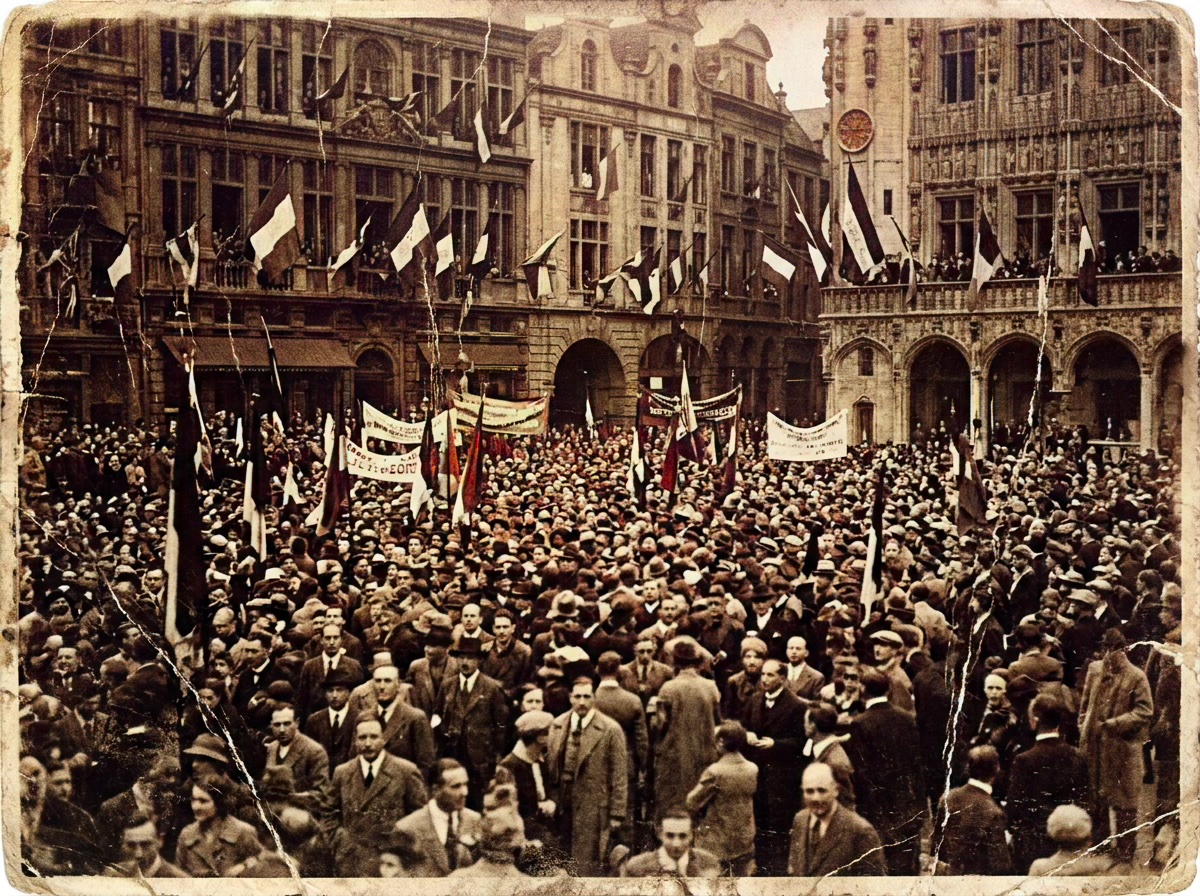 Living Portraits: Bringing Still Memories to Life with Pixomax AI Motion
Turn restored stills into living portraits — AI old photo restoration meets motion synthesis to repair damaged photos, enhance picture quality, and animate a gentle smile for sharing.
Compare tools in our AI photo colorizer comparison table or browse the colorization glossary.